
- What Does Document Upload and OCR Do in an Insurance App?
- Which Insurance Workflows Rely on Document Upload and OCR?
- How Does the OCR Pipeline Work From Capture to Validation?
- What Does Space-O Canada Build Into an Insurance OCR Feature?
- Should an Insurance App Use On-Device OCR, a Cloud OCR API or an IDP Layer?
- How Do You Secure Uploaded Insurance Documents?
- Which Capture and UX Practices Raise OCR Accuracy?
- How Should an Insurer Roll Out Document Upload and OCR in Phases?
- Which Questions Should You Answer Before Development Starts?
- Why Choose Space-O Canada for Document Upload and OCR in Insurance Apps?
- Frequently Asked Questions About Document Upload and OCR Feature
Document Upload and OCR Feature in Insurance App Development: Pipeline, Stack and Controls

 Last Updated: November, 3 2026
Key Takeaways
- Core answer: the feature captures documents by camera or file, extracts fields, and routes low-confidence results to review.
- Pipeline: capture, pre-processing, extraction, parsing and validation run in a fixed order.
- Stack: on-device OCR guides capture, cloud OCR APIs read complex documents, and intelligent document processing (IDP) layers add context.
- Controls: encryption, redaction, retention rules and audit trails protect policyholder data, and a phased rollout protects the claims system.
Document upload and Optical Character Recognition (OCR) let an insurance app read a driver’s license, medical bill or claim form from a policyholder’s photo. The app extracts key fields to automate data entry, speed up claims processing and onboarding, and reduce manual errors.
Policyholders already send claim evidence from their phones. According to J.D. Power, 49% of property claims customers submitted photos used to estimate or pay their claim. With that many uploads, small extraction errors reach real policy and claim records.
An insurance OCR feature rarely breaks at the scan. The break happens at the field. A policyholder photographs a driver’s license under dim kitchen light. The engine misreads one digit in the license number. The app writes that value straight into the policy record, with no confidence score and no review. Months later, an adjuster verifying a claim finds a license number that matches no motor vehicle record.
The fix starts with a confidence score on every field. IDP then reads what each field means, not just its characters. Low-confidence fields go to a human reviewer, and every correction lands in an audit trail.
Getting that fix into production takes five build decisions. Insurers and insurance operations teams adding document intake to policyholder and claims apps face them in discovery: which use cases to cover, how the pipeline runs, which OCR approach fits, which security controls apply and how to phase the rollout. Space-O Canada builds this intake layer into insurance software for policy administration, claims and underwriting as part of its fintech-focused insurance app development services.
What Does Document Upload and OCR Do in an Insurance App?
Document upload and OCR turn a policyholder’s photo or file into data your insurance systems can act on. Upload covers the capture side: a native camera snapshot, a live scan or a file picker. OCR covers the reading side, extracting text and key-value pairs from that image. Together, they replace manual data entry at the front of claims and onboarding.
1. How IDP differs from plain OCR
Intelligent document processing (IDP) understands what extracted text means, while plain OCR only returns characters. An OCR engine sees “DOB 04/12/1988” as a string. An IDP layer labels that string as date of birth and checks its format. Context matters for insurance documents with varied layouts, handwritten notes and itemized tables. IDP is what makes extraction usable at claims volume.
2. Documents an insurance OCR feature should cover
Most insurance apps start with a short list of high-volume documents.
- Driver’s licenses: name, license number, date of birth and expiry support identity checks. Most US and Canadian licenses also carry a PDF417 barcode on the back, which gives the app a second source to cross-check the printed fields.
- Insurance ID cards: policy number, carrier name and effective dates support servicing. Card layouts vary by carrier, so extraction should read field labels such as policy number rather than fixed positions on the card.
- Claim forms and accident reports: incident date, location and parties start the claim record. The parser should also confirm that the incident date falls inside the policy period before the claim moves forward.
- Medical bills: provider, service dates and itemized charges support injury claims. Itemized bills list procedure codes line by line, and IDP should keep each code tied to its charge so totals reconcile.
- Repair estimates and invoices: shop details, parts and labor totals support property and auto claims. Extraction should separate parts from labor hours, so adjusters can compare each line item against the damage reported in the claim.
- Policies from other carriers: coverage limits, deductibles and premiums support switching quotes. Declarations pages usually summarize these figures, so the app can ask for that single page instead of the full policy.
The feature’s value depends on which documents it reads and where they enter the workflow. Those workflows decide your first build scope.
Which Insurance Workflows Rely on Document Upload and OCR?
Four insurance workflows rely on document upload and OCR, and claims processing should lead your build. The other three reuse the same capture and extraction engine on new screens.
- Claims processing: the app reads repair invoices, medical bills and accident report forms, then pre-fills the claim. Policyholders can upload these documents at first notice of loss (FNOL), so adjusters open a populated claim file instead of retyping each attachment.
- Onboarding and KYC: the app scans a driver’s license to pre-fill the application and verify identity details. Applicants confirm the pre-filled name, address and date of birth rather than typing each field by hand.
- Policy switching: the app reads a competitor’s policy or declarations page to build a comparison quote. Agents can then quote matching limits and deductibles, so the prospect compares like-for-like coverage.
- Insurance card capture: the app reads policy number, carrier and effective dates for faster servicing. Service teams locate the right policy without asking callers to read card numbers aloud.
Policy switching deserves early attention because it turns a rival carrier’s document into your quote. Document intake is one module in a wider build, and our insurance app development guide walks through the full build.
Each workflow runs on the same underlying flow, even when the documents differ: a five-step pipeline.
How Does the OCR Pipeline Work From Capture to Validation?
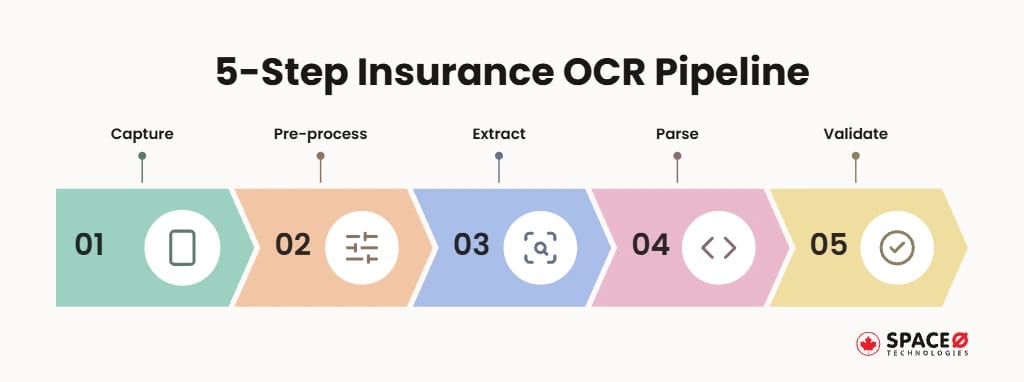
A reliable insurance OCR pipeline runs five steps in order. Skipping one shows up as bad data later.
- Capture: the user snaps a photo or uploads a file, guided by on-screen framing. Accepting PDFs, JPEGs and HEIC photos from the start avoids format errors when users upload files saved on their phones.
- Pre-process: the app or server crops, deskews and binarizes the image, then rejects images with blur or glare. Binarizing turns the image into black and white, which helps the engine separate text from colored backgrounds and security patterns.
- Extract: the OCR engine returns text, key-value pairs and a confidence score for each field. Bounding-box coordinates come back with each field, so the review screen can point to the exact spot on the image.
- Parse: rules, regular expressions or a large language model map raw text to your data schema. Rules suit fixed formats such as policy numbers and dates, while a language model helps with free-text fields like incident descriptions.
- Validate: fields below your confidence threshold go to human review, and every outcome is logged. A second check runs on business rules, since a field can score high on confidence and still fail a format or range test.
- A driver’s license upload from start to finish
A driver’s license upload shows the pipeline end to end. A camera overlay frames the card, and the app auto-captures once the image is sharp. The app crops and straightens the image, then sends it to the OCR engine. The engine returns name, license number, date of birth and expiry, each with a confidence score. Parsing checks date formats and the license number pattern. High-confidence fields pre-fill the form; low-confidence fields are highlighted for the user to confirm.
- ### Handling large files and weak connections > Heavy documents and patchy coverage call for asynchronous processing. The app uploads directly to storage through a pre-signed URL, so files skip your API servers. Extraction then runs in the background, and a webhook signals completion. A push notification tells the policyholder the results are ready to review. When coverage drops, an offline queue holds captures and uploads them once the signal returns.
>
The pipeline itself is standard; the quality of each step is where builds differ. A development partner earns its place in those steps.
What Does Space-O Canada Build Into an Insurance OCR Feature?
We build the OCR intake layer that plugs into the claims or policy administration system an insurer already runs. Delivery happens in phases, so claims and servicing keep running while intake improves. Our insurance software work covers policy administration, quote and bind engines, claims processing automation and broker portals. The insurance claims app in our portfolio shows that claims work in practice.
Our team owns every piece of the intake build:
- Capture interface: we build camera and upload screens in Swift, Kotlin, React Native or Flutter.
- Engine integration: we connect on-device or cloud OCR and the pre-processing that feeds it.
- Confidence routing: we set per-field thresholds and a review queue for low-confidence results.
- Audit logging: we record who uploaded, reviewed and changed each field, with timestamps.
- System integration: we write extracted data into your existing claims, policy or underwriting platform.
Our OCR capture experience comes from shipped fintech products. Receipt2Sheets is an AI-powered receipt scanner that extracts receipt data with OCR and syncs records to Google Sheets, developed by Space-O Canada. The product serves expense tracking, not insurance, but its capture and extraction problems overlap closely.
Plan Your Insurance OCR Intake Layer
Share your document types and claims system with our team. We will outline a capture, extraction and review approach for you.

The intake layer only works if the OCR approach underneath fits your documents. Choosing that approach is the next decision.
Should an Insurance App Use On-Device OCR, a Cloud OCR API or an IDP Layer?
Most insurance apps combine approaches rather than pick one, so the real question is which job each layer does.
| Approach | Example tools | Best for | Data leaves the device? | Handwriting and tables | Review routing | What Space-O Canada builds around it |
|---|---|---|---|---|---|---|
| On-device OCR | Google ML Kit, Apple Vision, Tesseract | Live capture guidance, quality checks, printed ID text | No, not until upload | Best on printed text; complex layouts go to the cloud | User review screen in the app | Capture UI, quality checks, offline queue |
| Cloud OCR API | AWS Textract, Google Cloud Vision and Document AI, Azure Document Intelligence | Claim forms, invoices, multi-page documents | Yes, to the provider over TLS | Textract handles tables and handwriting; Azure suits semi-structured forms | Confidence scores feed routing rules | Secure upload, asynchronous processing, confidence routing |
| IDP layer | Built on a cloud OCR API plus parsing | Claim packets with varied layouts | Yes, through the cloud OCR provider | Varied layouts, handwriting and itemized tables | Human-in-the-loop queue with audit trail | Schema mapping, review queue, audit logging, claims or policy system integration |
###
1. Where on-device OCR fits
On-device OCR runs on the phone itself, so choose it when documents must stay on the device until the policyholder confirms them, or when coverage is patchy. Pair it with a cloud service for claim forms and handwritten pages.
2. Where a cloud OCR API fits
A cloud OCR API processes the image on the provider’s servers, so choose it when claim forms, invoices and multi-page documents make up most of your volume. Set routing rules on the confidence scores each service returns.
3. Where an IDP layer fits
An IDP layer sits on top of cloud OCR and adds parsing, classification and context. Choose it when claim packets mix layouts, itemized bills and handwritten notes in one submission, and plan the reviewer queue and audit trail alongside it.
No vendor name settles the decision; your document mix and data rules do. Those data rules start with security.
How Do You Secure Uploaded Insurance Documents?
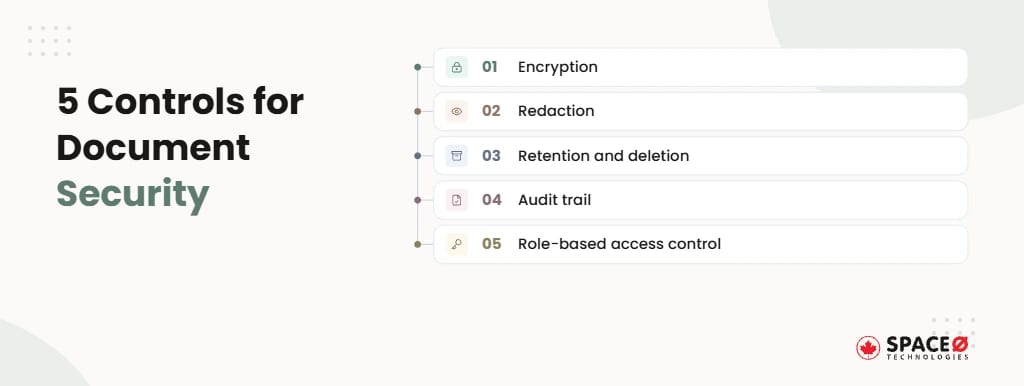
Five controls secure uploaded insurance documents: encryption, redaction, retention rules, audit trails and role-based access. A driver’s license image in an unencrypted storage bucket is an exposure, not a feature, because insurance documents carry names, addresses, license numbers and claim details. Each control belongs in every build:
- Encryption: use AES-256 for documents at rest and TLS for every upload and API call. Keys should live in a managed key service such as AWS KMS or Azure Key Vault, separate from the storage that holds the files.
- Redaction: mask sensitive fields such as license numbers once extraction and review finish. Masked copies can also feed analytics and testing, so real policyholder data never reaches lower environments.
- Retention and deletion: remove raw images on a set schedule and log each deletion. Align the schedule with your records retention policy and any legal hold on open claims, so needed files are not deleted early.
- Audit trail: record the user, time, source file and every field change. Write the log to append-only storage so entries cannot be edited, which keeps the record usable during regulatory exams and claim disputes.
- Role-based access control: limit raw-image access to the reviewers who need it. Revisit permissions on a regular schedule, and revoke access as soon as staff change roles or leave the team.
US insurers should map the feature against GLBA privacy rules and CCPA for California residents. Space-O Canada maps that exposure during discovery instead of bolting controls on during QA. For insurers that also operate in Canada, our platforms are engineered to support PIPEDA, FINTRAC and OSFI requirements. Payment card flows in the same app are built to support PCI-DSS.
When you vet a cloud OCR vendor, request its SOC 2 report and confirm where documents are processed. Apply the same controls across the rest of a secure insurance claims app, from login to payout.
Strong controls protect the data; good capture design protects its accuracy. The capture experience comes next.
Which Capture and UX Practices Raise OCR Accuracy?
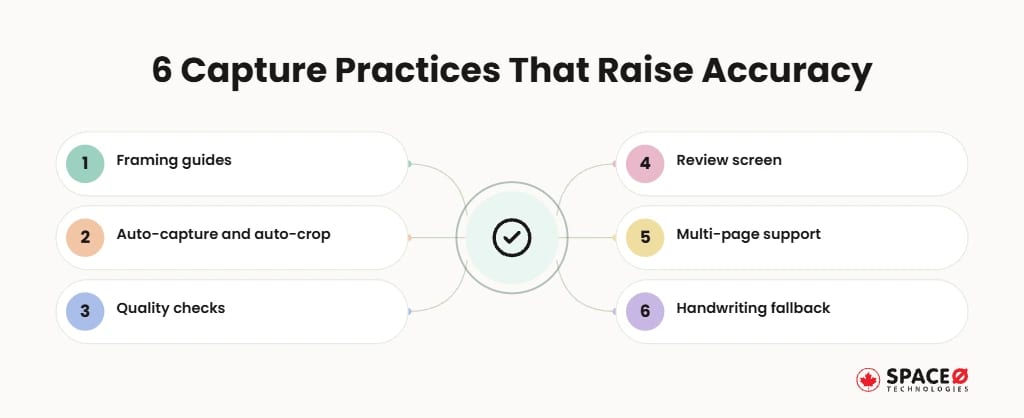
Most extraction errors start with a bad photo, so accuracy work begins on the capture screen. Six capture practices raise the share of fields that pass validation without review.
- Framing guides: the app overlays a document outline so users center the card or page. Separate outlines for ID cards and full-page forms help, since a card and a letter-size page need different proportions.
- Auto-capture and auto-crop: the app snaps the photo once edges appear and trims the background. A manual shutter button should stay available for users who prefer to take the photo themselves.
- Quality checks: the app flags blur, glare and low light before the upload starts. Short prompts such as “move closer” or “avoid glare” tell users how to fix the shot instead of rejecting it silently.
- Review screen: the app highlights low-confidence fields so the user edits them before submitting. Showing the cropped image beside each field lets users compare the value against the original without leaving the screen.
- Multi-page support: the app combines pages of a claim form or medical bill into one file. Page thumbnails let users reorder, retake or delete a page before the file goes to extraction.
- Handwriting fallback: the app sends handwritten fields to review when intelligent character recognition is unsure. Incident descriptions and witness statements on claim forms are typical handwritten fields to route this way.
Each practice is cheap to build and expensive to skip. Sequencing them across releases keeps the first version focused.
How Should an Insurer Roll Out Document Upload and OCR in Phases?
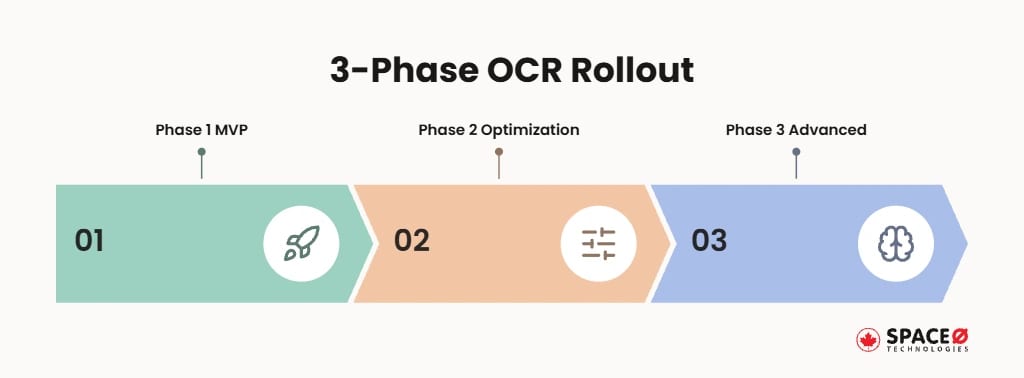
A phased rollout puts a working intake feature in front of policyholders early. Sophistication follows as real data arrives.
- Phase 1, MVP: one or two document types, cloud OCR, a user review screen and audit logging. Releasing to a single line of business keeps the first launch small enough to measure accuracy by document type.
- Phase 2, optimization: on-device quality checks, tuned confidence thresholds, asynchronous processing and an offline queue. Most of these upgrades target speed and reliability, so policyholders wait less and fewer uploads fail on weak connections.
- Phase 3, advanced: IDP for handwriting and tables, policy switching extraction and cross-document discrepancy detection. Teams usually reach this stage once review volumes show which documents still need the most manual work.
Discrepancy detection compares fields across documents, such as the name on a license against a claim form. Extraction results from Phase 1 should set the thresholds you tune in Phase 2. Insurtech startups can treat Phase 1 as launch scope, with our insurtech app development guide covering the rest of the build.
Phasing keeps scope honest and lets live documents guide each release. A few answers up front decide what Phase 1 contains.
Which Questions Should You Answer Before Development Starts?
Three answers shape the architecture more than any vendor choice.
- Which documents come first? Rank document types by monthly volume and the manual entry each one demands. Claims and servicing teams can supply both numbers from their current queues before discovery begins.
- Native or cross-platform? Choose Swift and Kotlin for deep camera control, or React Native or Flutter for one codebase. Cross-platform frameworks can still call native camera modules where capture quality matters, so the choice is rarely all or nothing.
- Cloud API or on-device? Decide where documents may be processed, based on privacy rules and connectivity. Your legal and security teams should sign off on this answer early, because the decision sets which OCR vendors stay on the shortlist.
Turn Every Uploaded Claim Document Into Reviewed, Usable Data
Space-O Canada scopes your document types, OCR approach and review rules in discovery. Then our engineers build it into your existing claims system.
Clear answers here shorten discovery and prevent rework after launch. Document count and platform choice also shape your insurance app development cost, so settle both before you request estimates. Here is how Space-O Canada turns those answers into a working intake feature.
Why Choose Space-O Canada for Document Upload and OCR in Insurance Apps?
Choose Space-O Canada when you want capture, extraction and review designed as one intake layer instead of three separate projects. Good capture protects image quality, IDP turns text into usable fields, and an audit trail records every decision.
Start with one or two high-volume documents and prove the review loop first. Phase the rest as real extraction results show where thresholds need tuning.
Space-O Canada has operated since 2018 and served 100+ clients, including Fortune 500 companies.
One in-house team scopes compliance, builds the intake layer and connects it to your claims system. When you are ready to hire insurance app developers, share your document list below.
Frequently Asked Questions About Document Upload and OCR Feature
Can automation handle handwritten insurance forms?
Partly. IDP layers are built for handwriting, varied layouts and itemized tables, and some cloud OCR services such as AWS Textract handle handwriting. When the engine is unsure of a handwritten field, the app should send it to human review instead of writing it into the record.
What should I ask a cloud OCR vendor before sending policyholder documents to it?
Ask the vendor for its SOC 2 report, and find out where your documents are processed. Cloud OCR sends the image off the device to the provider, so also confirm that every upload and API call uses TLS.
How do I add OCR intake to an existing claims or policy platform without replacing it?
Build the intake layer as a separate capture-and-extraction service that writes extracted data into the claims, policy or underwriting platform you already run. Map the extracted fields to your data schema and release the integration in phases, one document type at a time. Space-O Canada delivers OCR intake this way, with no rip-and-replace.
How do I tune OCR confidence thresholds after launch?
Start with configurable defaults in the first release, then use real extraction results to adjust them in an optimization phase. Review how often each document type’s fields pass validation and how often reviewers correct them, then adjust thresholds per document and per field. Log every correction in the audit trail so you can see the effect of each change.
How do claims teams use OCR on medical bills and repair estimates?
Medical bills are read for provider, service dates and itemized charges to support injury claims. Repair estimates are read for shop details, parts, labor and totals to support auto and property claims. Both document types suit cloud OCR with IDP because of their itemized tables, with results sent to a claims reviewer queue.
How much does it cost to add document upload and OCR to an insurance app?
The cost of document upload and OCR depends on how many document types you support, which OCR approach you choose and how deeply the feature connects to your claims system. Cloud OCR APIs add a per-page processing fee on top of the build, while on-device OCR runs without per-page fees. A human review queue, audit logging and compliance controls also add scope, so a one- or two-document MVP keeps the first budget contained.
Can OCR confirm that an uploaded driver’s license is genuine?
No. OCR reads the text on a driver’s license but does not prove the card is authentic. Identity verification needs extra checks, such as comparing the PDF417 barcode data with the printed fields, inspecting security features and matching a selfie to the license photo. Insurance apps pair OCR with a dedicated ID verification service during onboarding and KYC, then send any mismatch to a reviewer.
Can a large language model replace OCR for insurance documents?
Not fully. Vision-capable large language models (LLMs) can read a document image and return structured fields, but they can produce plausible values that are not on the page and do not return a reliable confidence score for each field by default. A safer pattern keeps an OCR engine for text and positions, then uses an LLM in the parsing step to map messy or free-text content to your data schema, with low-confidence results still sent to review.


Let’s Discuss Your Idea
Share your idea with our fintech development team and get a practical breakdown of what you need to build, integrate, secure, and launch it.
 Your project is covered by an NDAYour information stays secure and confidential




What our clients say


When we set out to build our Estate Tax Planning Tool, we needed a development partner we could trust with something this complex and consequential. Space-O Canada brought the technical expertise and attention to detail needed to handle intricate tax calculations and edge cases. They communicated clearly, delivered on time without cutting corners, and built a product we trust completely.
 Ed Chetan EdwinFounder, CharityCalc
We partnered with Space-O Canada to build a fintech platform that could support secure transactions, third-party integrations, and future scalability. Their team understood our business requirements from the beginning and delivered a well-architected solution without unnecessary complexity. Communication was consistent, milestones were met on time, and every challenge was handled proactively.
 Michael CarterCo-Founder, Digital Payments Platform
The fintech app came out exactly the way I pictured in terms of functionality. I will refer future UI/UX clients to their team. During the testing phase of the app, it performed according to the initial designs in terms of functionality. Their team was dedicated to creating the best version of the app and provided their own ideas to improve it.
 Amanda LewisProduct Manager, Lending Platform
Our banking modernization project involved complex integrations and strict security requirements, and Space-O Canada handled both with confidence. They developed a reliable banking platform that improved operational efficiency while maintaining a smooth customer experience. Their structured development process and clear communication kept the project on track from start to finish.
 Daniel RobertsVP of Technology, Regional Bank
Our legacy insurance system created delays across policy management and claims processing. Space-O Canada developed a centralized platform that streamlined our workflows and improved efficiency across departments. The project was delivered on schedule, and the team’s understanding of insurance technology was evident throughout the engagement.
 Emily FosterOperations Director, Insurance Provider
Developing a trading platform requires speed, reliability, and technical precision. Space-O Canada delivered a solution that performs exceptionally well while supporting real-time market data and intuitive trading workflows. Their project management was excellent, and the team remained responsive throughout every stage of development.
 Ethan MorganChief Product Officer, Investment Platform
The fintech app was successfully launched, and users loved its sleek design and features. Space-O Technologies worked in an organized and collaborative manner, allowing them to achieve quality results. They also took the time to deeply understand the project. They were very organized and had a good track record.
 David WilsonFounder, Personal Finance App